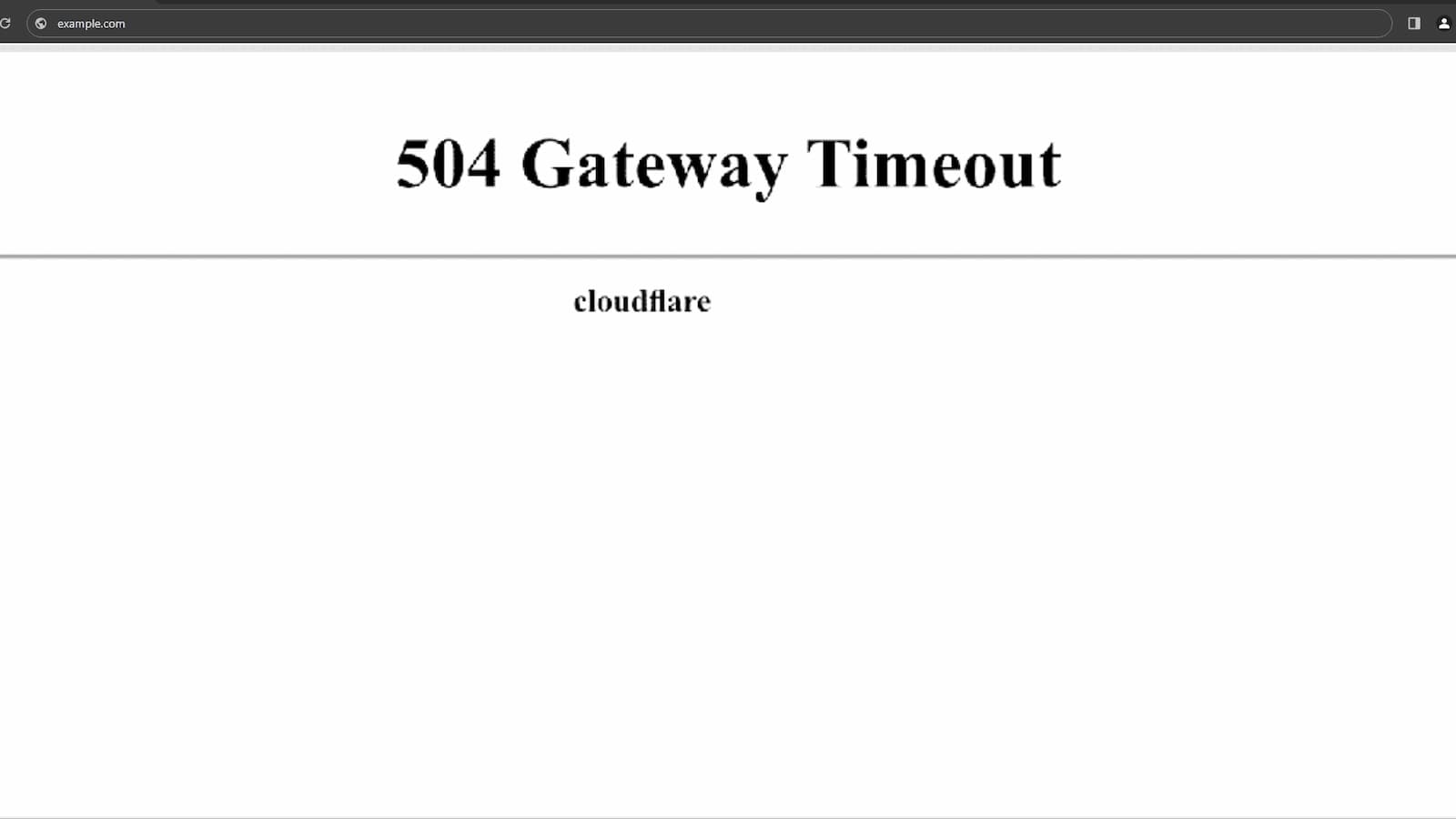
504 Gateway Timeout Error Fix: Many people have seen the 504 error while opening a website. Most visitors just refresh the page. If it still does not open, they leave and try another site. But for website owners, this problem is serious. If you run an online store, portfolio site, or service website, you cannot afford downtime. A website should work 24×7. When it shows a 504 error, it means something is wrong in the background.
A 504 Gateway Timeout error happens when one server does not get a fast reply from another server. Websites use different servers to load pages and data. If one part stops responding, the whole site can show this error. The message will stay there until the main problem is fixed from the backend.
Why TikTok Is Not Letting Me Post in 2026? Check Causes, Duration, and Fixes
There are many reasons why this error can appear. Some common causes are:
- The server of the website is not working.
- The server memory limit has been reached.
- There might be some Network Connectivity error.
- Some changes might have been there with the DNS.
- The firewall of the Servers might be causing issues.
- There are some problems with the CDN.
- Your website is facing some attacks.
Things to Check First
Before trying big fixes, start with small checks. Sometimes the issue is very simple.
First, refresh the page in your browser. In some cases, the request from the browser did not go through correctly. Reloading the page can fix it right away.
Close and Open
If that does not help, close your browser and open it again. You can also try a different browser. Sometimes the browser you use may be outdated or has its own issue. You can even test the website on another device. If the error still shows everywhere, then the issue is likely from the website side.
DNS settings
Next, check DNS settings. This problem often happens after moving your website to a new hosting company. DNS updates can take 24–48 hours to fully spread around the world. During this time, some users may see errors. You can check your DNS status using online tools. If needed, try clearing or flushing your DNS cache.
Paramount Plus Error Code 3005 Explained and Easy Ways to Fix it
Deeper Fixes for Website Owners
If DNS is fine, then check your server. Visit your hosting provider’s system status page to see if there are known issues. High traffic, too many requests, or large memory use can slow down the server. If your site is growing then have to upgrade your hosting plan.
Login to Dashboard
You should review error logs in your hosting dashboard. These logs show what is going wrong behind the scenes throught that. They can help you understand if a file, script, or even setting is causing a trouble.
Plugins
If you are using WordPress then the plugins or themes can sometimes break things. Disable all plugins and switch to a default theme and after that check if the site works. If it starts working again then turn plugins back on one by one.
Security
Sometimes hackers attack websites which can overload the server. Check for unusual activity. If you think your site is under attack, contact your hosting provider right away.
Updated WordPress
You should also make sure your WordPress version is updated beacuse old versions can have bugs or security problems.
Contact your Hosting Provider
If you have tried everything and the 504 error is still there then contact your hosting company. It could be a major server file issue or a deep system error.